This article refers to PFM v0.4.3 and newer and may not be representative of older versions.
Pragma supports most common model and texture formats. You can find a list of all supported asset formats [here](https://wiki.pragma-engine.com/books/pragma-engine/page/asset-types). Depending on the asset and the asset format, the import process may take several seconds or minutes, during which Pragma may appear frozen. ### Source Engine Assets Pragma is capable of detecting most Source Engine games installed on your system (assuming they are installed via Steam), and can import assets from those games, as well as some workshops, automatically. In this case you should be able to immediately find the assets in PFM's model/material catalog without having to do anything. For uncommon Source Engine games, you may have to add them to the [mount list](https://wiki.pragma-engine.com/books/pragma-engine/page/game-mounting) manually for Pragma to be able to detect them. Source Engine assets that have been detected, but not yet imported, are indicated by the following icon in the model/material catalog: [](https://wiki.pragma-engine.com/uploads/images/gallery/2022-01/pragma-2022-01-22-15-27-07.png) If you want to install Source Engine assets manually, see [this section](https://wiki.pragma-engine.com/books/pragma-filmmaker/page/downloading-and-importing-assets#bkmrk-manual-installation) for more information. ### Web-Browser The easiest way to install custom assets is via the integrated Web Browser. Click [here](https://wiki.pragma-engine.com/books/pragma-filmmaker/page/web-browser) to find out more. ### Manual Installation There are two ways of installing assets manually: #### Model Explorer [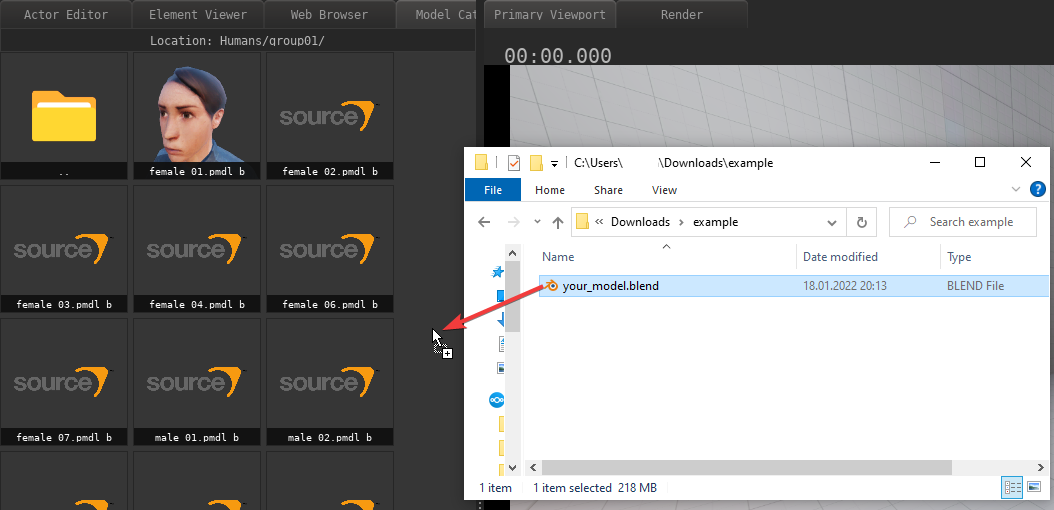](https://wiki.pragma-engine.com/uploads/images/gallery/2022-01/pragma-2022-01-22-15-30-28.png) If you have a single-file asset (e.g. a "\*.blend"-file), or a compressed archive (e.g. zip), you can simply drag-and-drop it into PFM's model explorer, and Pragma should be able to detect and import the assets automatically. #### Direct Copy [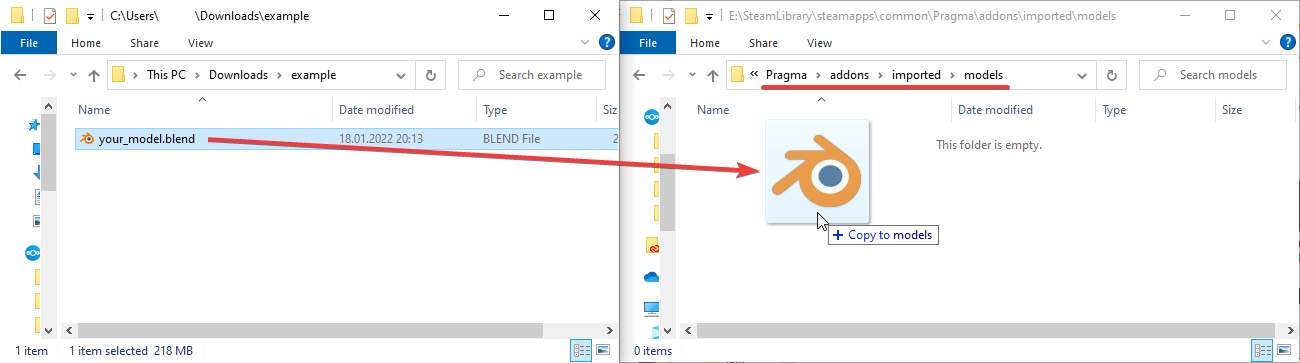](https://wiki.pragma-engine.com/uploads/images/gallery/2022-01/explorer-2022-01-22-15-36-33.png) Another way of importing assets is to just copy the asset files to a location where Pragma can find them. The recommended location for that is in "Pragma/addons/imported/" (create the directory if it doesn't already exist). Depending on the type of asset, you will have to create some additional sub-directories: - **Models** should be copied to "Pragma/addons/imported/models" - **Materials** and **textures** should be copied to "Pragma/addons/imported/materials" - **Sound-files** should be copied to "Pragma/addons/imported/sounds"If you're trying to import a model with one of the following formats, and the model textures are **not** embedded, you will have to copy both the model-file **and** the textures to "Pragma/addons/imported/models": glTF, glb, nif, blend, fbx, dae, x3d, obj, abc, usd
Pragma will convert the assets to native formats whenever they're used for the first time. Please note that if you install assets this way, you may have to restart Pragma in order for it to be able to detect them.