Material override properties can currently not be animated.
To add a material override, go to the [actor editor](https://wiki.pragma-engine.com/books/pragma-filmmaker/page/actor-editor) and select the `pfm_model` component of the actor, then click on `Edit materialOverrides`. This will take you to the [UDM Editor](https://wiki.pragma-engine.com/books/pragma-filmmaker/page/udm-editor) window, where you have to set up the following data structure: [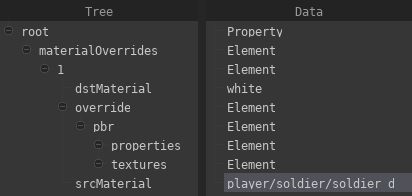](https://wiki.pragma-engine.com/uploads/images/gallery/2022-10/pragma-2022-10-31-17-55-00.png) You can do so manually, or by copying the following code block to your clipboard, right-clicking the `root` item, and selecting `Paste from clipboard`: ``` "pfm_udm_copy" { $array materialOverrides [element;1][ { $string srcMaterial "" $string dstMaterial "" "override" { "pbr" { "properties" { } "textures" { } } } } ] } ``` Now double-click the value for the `srcMaterial` property and enter the path and filename (without extension) of the material you want to override (e.g. enter `player/soldier/soldier_d`, if the material is `materials/player/soldier/soldier_d.pmat`). If you want to override the material with another material, double-click the value for the `dstMaterial` property and enter the path of the replacement material. You can also replace individual material properties and textures manually by adding them to the `properties` and `textures` sections. For instance, if you want to override the `color_factor` property, right-click `properties`, select `Add Property > vec3` and name the property `color_factor`. On the right side you can now double-click the value to edit it: [](https://wiki.pragma-engine.com/uploads/images/gallery/2022-10/pragma-2022-10-31-17-59-27.png) If you want to replace the albedo map, right-click `textures`, select `Add Property > string`, name the property `albedo_map` and input the texture you want to use as a replacement as the value.Make sure to press `Save` to apply the changes you have made, and save the project afterwards.
If you want to add more than one material override, follow these steps: 1. Right-click `materialOverrides` and choose `Add Item`. 2. Right-click the first item in `materialOverrides` and choose `Copy to clipboard`. 3. Right-click the second item in `materialOverrides` and choose `Paste from clipboard`. You can repeat these steps for any number of additional overrides.