Make sure to press `Save` when you're done, to ensure your changes aren't lost!
UDM data is represented as a simple tree-structure with key-value pairs. The key is always a name (`string`) and is displayed in the `Tree` column. Every key has a corresponding value, which can be an `element`, `array` or concrete data `value` and is displayed in the `Data` column: [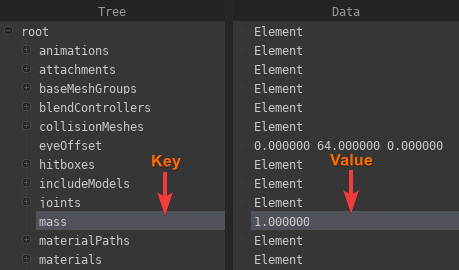](https://wiki.pragma-engine.com/uploads/images/gallery/2022-10/pragma-2022-10-31-18-27-54.png) In the example above the key `mass` has the value `1.0` (float) assigned to it. You can double-click a `value` to change it. An `element` represents a node in the tree and can have children, which also can have children, etc. You can expand or collapse the children of an `element` by clicking the +/- icon next to it: [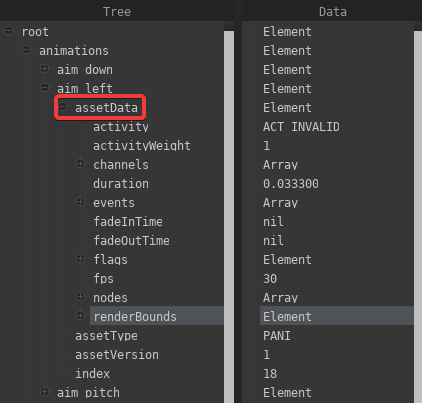](https://wiki.pragma-engine.com/uploads/images/gallery/2022-10/pragma-2022-10-31-18-38-10.png) An `array` is simply a list of concrete `values` (e.g. an array of `vec3`) or `elements`. You can remove properties by right-clicking them and choosing `Remove`. To add a new property, right-click an element and choose `Add Property`, then select the type of the value. You can also select `element` to create a child-element, or `Add Array` to create an `array` of values/elements. After making your selection, you will have to enter a key-name and press enter. If the tree is too large to work with effectively, you can right-click an `element` and choose `Make Root`, which will re-arrange the tree view to only display that `element` and its children. You can press the [](https://wiki.pragma-engine.com/uploads/images/gallery/2022-10/pragma-2022-10-31-18-46-57.png)-icon to get back to the original root.If you are editing an asset file (like a model), the changes may not actually apply until Pragma has been reloaded. For editing materials, it is usually better to use the [material editor](https://wiki.pragma-engine.com/books/pragma-filmmaker/page/material-editor).
You can also use the UDM editor to edit properties of a PFM project which may not be accessible otherwise (handle with care!): [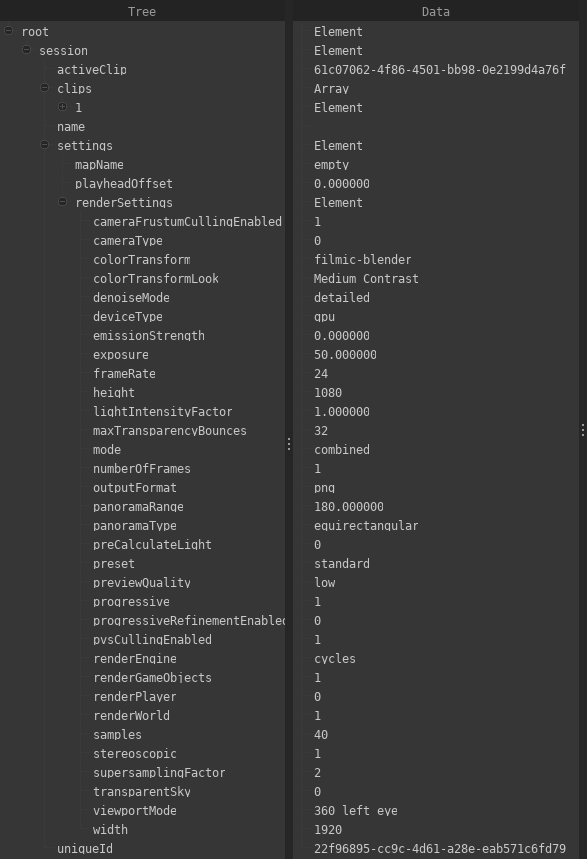](https://wiki.pragma-engine.com/uploads/images/gallery/2022-10/pragma-2022-10-31-18-55-28.png)