Volumetric spot-lights are currently only supported for the [Pragma renderer](https://wiki.pragma-engine.com/books/pragma-filmmaker/page/pragma-renderer)!
[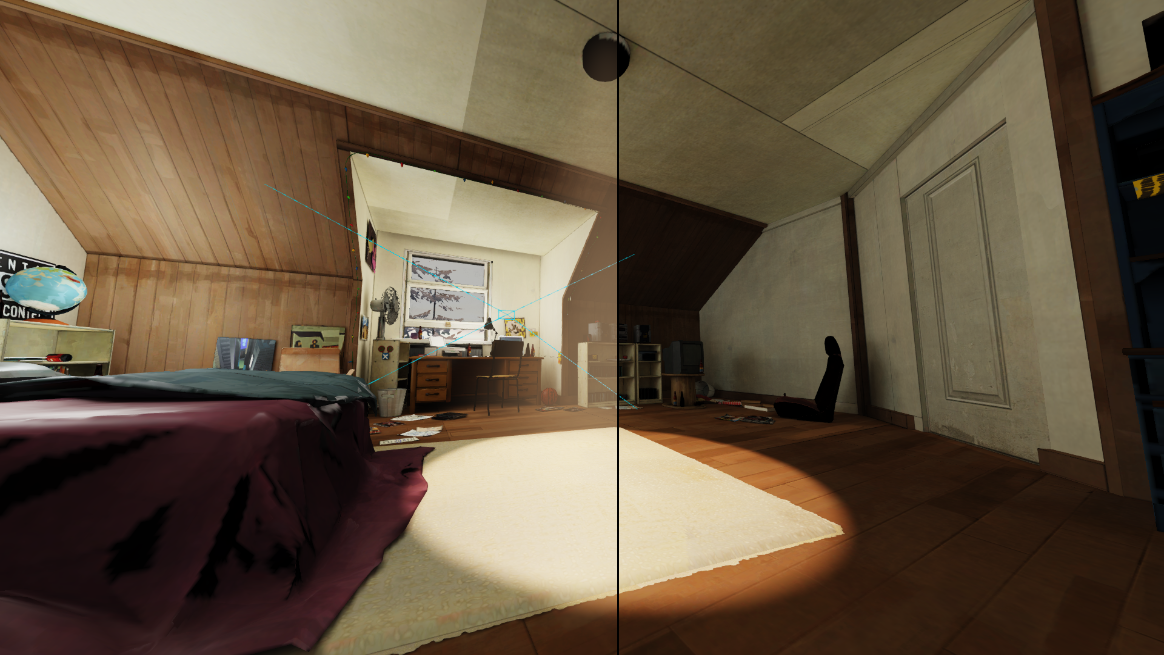](https://wiki.pragma-engine.com/uploads/images/gallery/2022-07/volumetric-spotlight.png) You can add a volumetric effect to a spot-light source to create a simple, visible light beam. To add a volumetric effect to a spot-light source, simply right-click the `Components` element of the spot-light actor in the actor editor and select `Create new Component > light_spot_volume`. The intensity of the volumetric effect depends on the light's intensity, but can also modified with the `intensity` property of the `light_spot_volume` component. ### General Volumetric LightingGeneral volumes are currently not supported for the Pragma renderer.
Adding a volume to your scene will **significantly** increase the number of samples required for the scene, increasing render times. It is therefore not recommended for animations.
When using the LuxCoreRender renderer, the volume will affect the entire scene globally, regardless of the volume bounds.
To achieve a volumetric affect such as the one from the top-most image, you can add a new `Volume` actor to your scene via the actor editor. The volume is a cube-shared area, which encompasses the entire scene by default. All lighting within the bounds of the cube will be affected. Configuration options are available in the `pfm_volumetric` component of the actor: [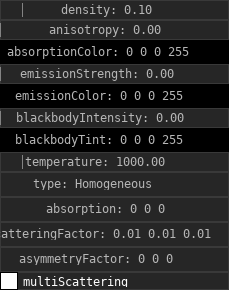](https://wiki.pragma-engine.com/uploads/images/gallery/2022-07/pragma-2022-07-28-20-39-03.png) Please note that some of the options only have an effect for certain renderers. You can also change the bounds of the volume if you only wish the volumetric effect to apply to a certain area of the scene. To do so, select the `pfm_cuboid_bounds` component of the volume actor and enable the `showDebugBounds` property to visualize the bounds of the volume. This is merely a visual aid, so make sure to disable the property when you're done changing the bounds. To change the bounds, select the `minBounds` and `maxBounds` properties respectively and move them around using the move transform tool in the viewport. [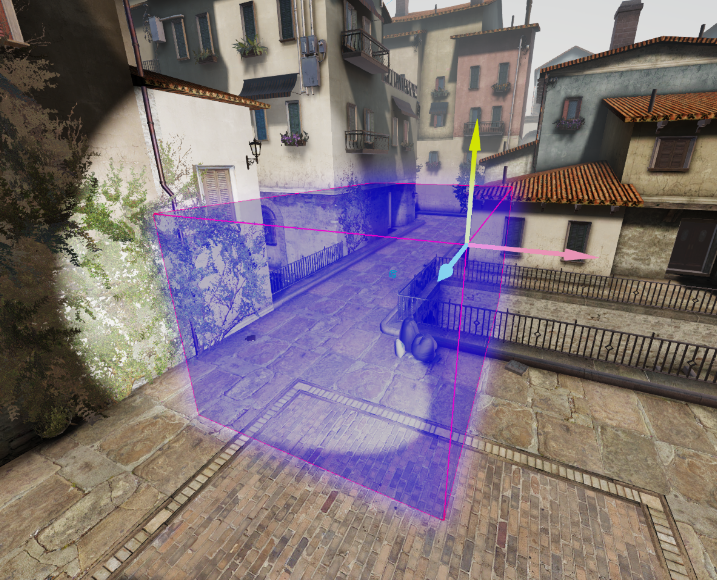](https://wiki.pragma-engine.com/uploads/images/gallery/2022-07/pragma-2022-07-28-21-13-16.png)