
Rendering
Rendering
To render your scene, switch to the "Cycles-Renderer" tab above the viewport.viewport Youand you should see a window similar to this one (but with a black squareviewport):
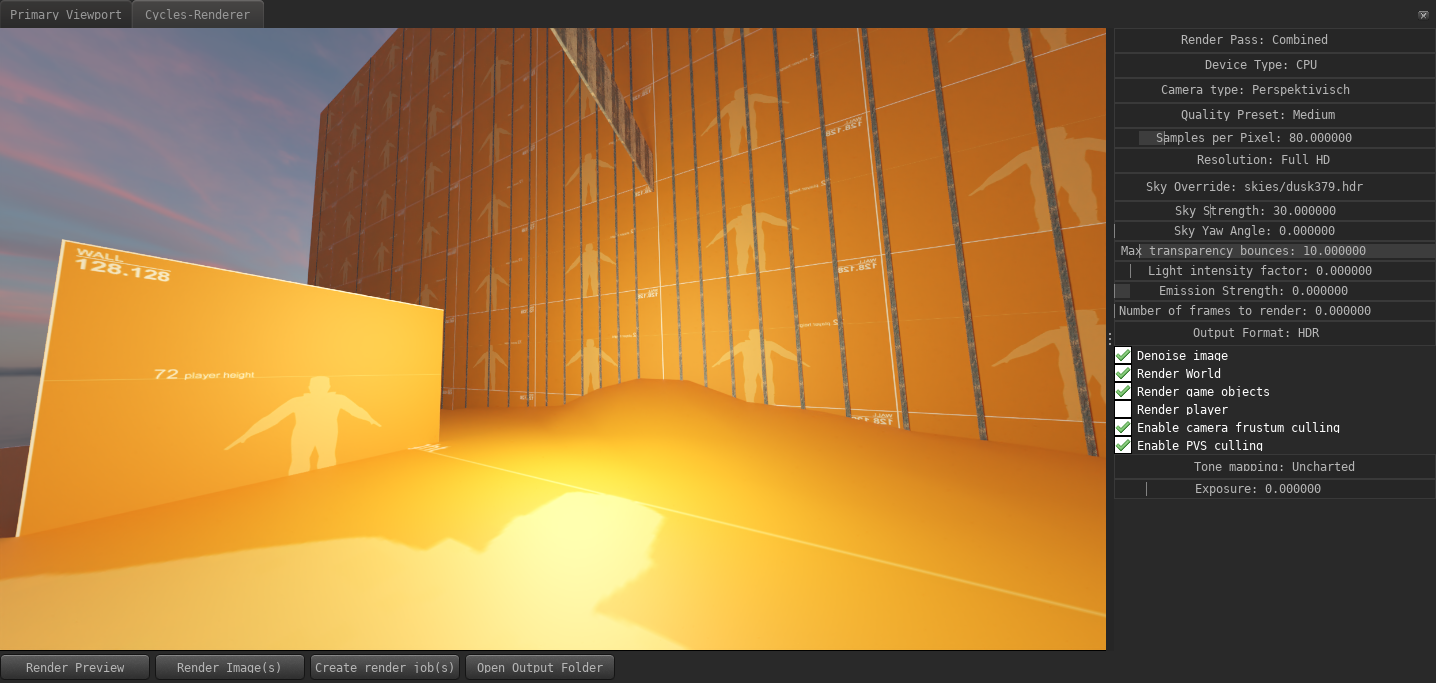
This is where you can render your scene with the Cycles path-tracing rendering engine. This is the same renderer used by Blender to create highly realistic images.
Cycles is not a real-time renderer, which means rendering an image withtakes time. The amount of time required, depends on the complexity of the scene, your hardware, the specified sample count and various other factors, and can take anything between several render options to the rightseconds and several buttons below it.minutes.
If you want to get a quick preview render, click the "Render Preview" button. This will render an image with a very low sample count and low resolution, which giveswill give you a rough idea of what the final render will look like,like. butTo should not be used asrender your final render.image(s), press the "Render Image(s)" button.
When rendering an image for a new project or a new map for the first time, Pragma may appear frozen for a few minutes, this is because some additional asset conversions are required for the Cycles-renderer. Subsequent renders should not take as long.
ToThe render options to the right can be used to change the resolution of your render, sample count, number of frames, etc. You can leave most of these options on their defaults in most cases, but here are some of the more important options:
- Device Type: You can render with either your CPU or your GPU. This option only affects rendering speed, the end-result is the same. If you have a modern GPU, you may want to consider switching to GPU rendering.
Once rendering is complete, the image will automatically get saved to the specified output directory on your harddrive,harddrive. youYou can press the "Open Output Folder" to opennavigate to it in the system explorer.
You can use the render options to change the resolution, sample count, number of frames to render, etc. To get more details about a specific option, hover over it with the mouse and a tooltip should appear.
In general it is not recommended to render a large sequence of images or images with a large sample count / high resolution directly in PragmaPragma, andbut to use the external render tool instead. Please see that section for details.
VR / 360 Scenes
To render VR or 360 images, change the "Camera type" to "Panorama". This opens two new render options:
- Panorama Range: The horizontal view range in degrees for your scene. The vertical range is always 180 degrees.